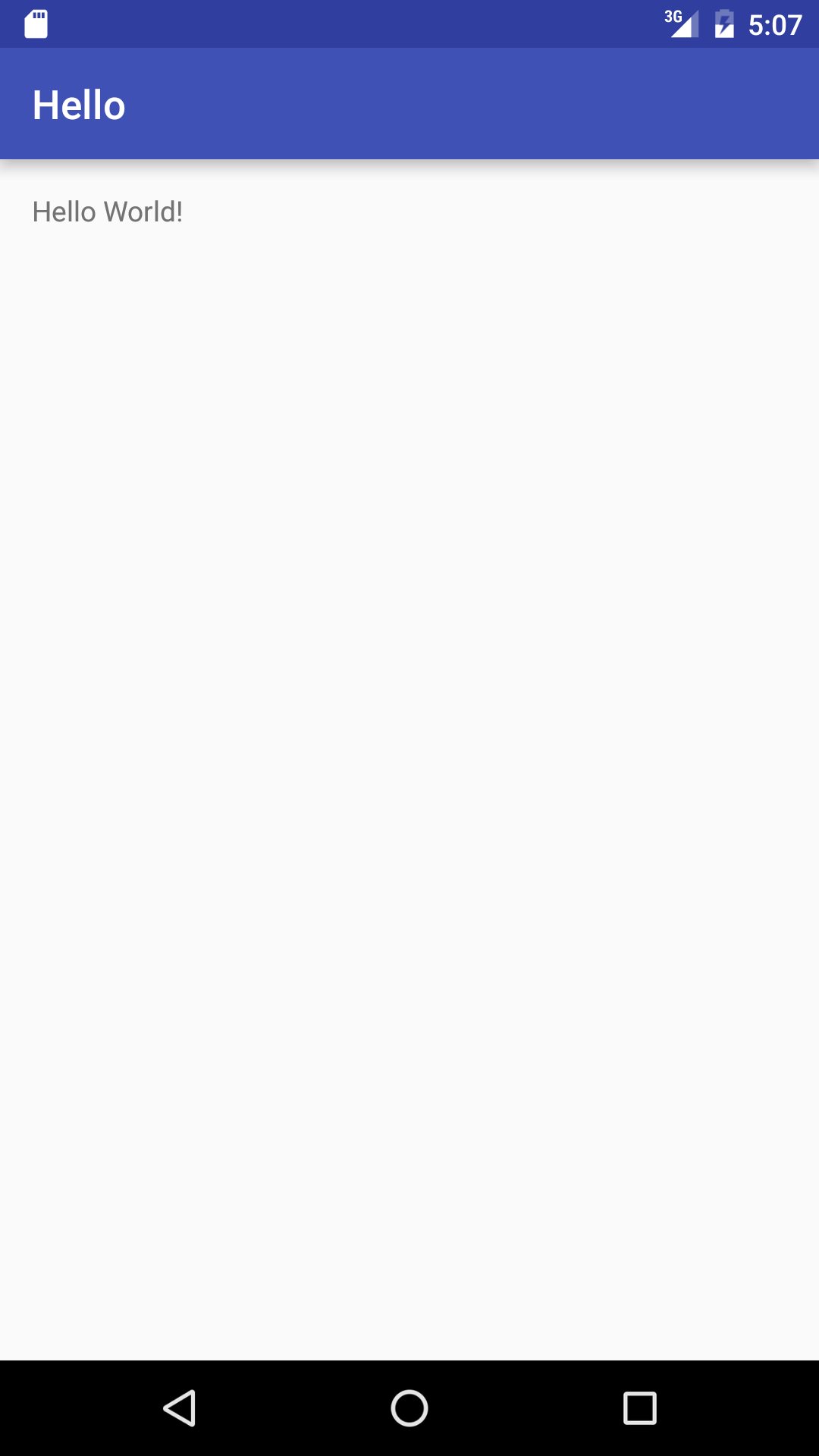
RelativeLayout
element in the
activity_main.xml
file in
Hello
contains exactly one element,
the
TextView.
But a
RelativeLayout
(or any other type of
layout)
is necessary only when it contains more than one element.
Keep the
TextView,
but remove the
RelativeLayout
by removing the pair of
RelativeLayout
tags.
The
activity_main.xml
file should now contain only the following.
<TextView
    xmlns:android="http://schemas.android.com/apk/res/android"
    android:layout_width="wrap_content"
    android:layout_height="wrap_content"
    android:text="@string/hello_world" />
Verify that the app still works and that its output remains unchanged. Then put the
RelativeLayout
back in,
changing the
activity_main.xml
file back to
the
way it originally was.
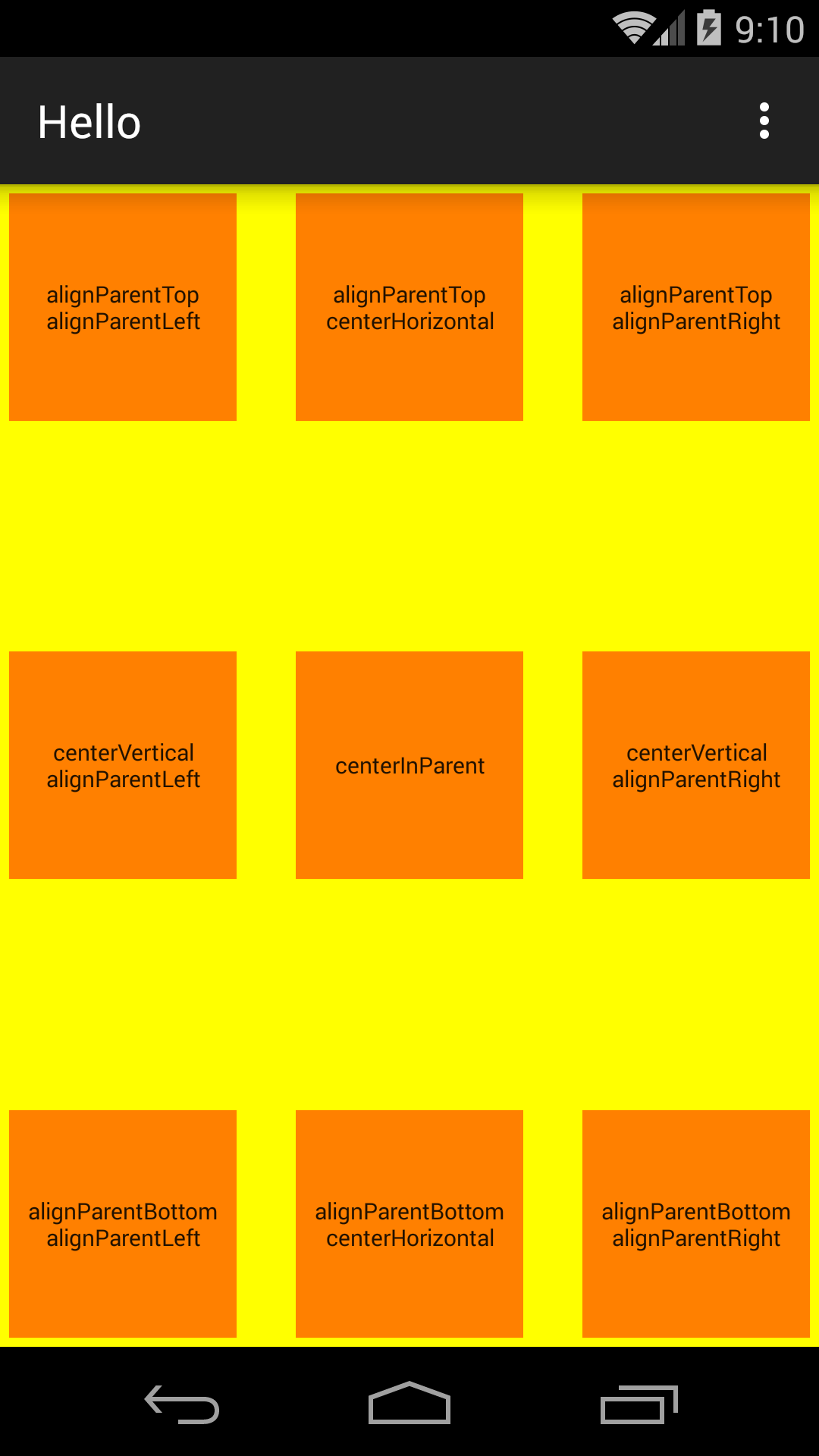
RelativeLayout
can be positioned relative to the edges of the
RelativeLayout
by means of the attributes listed in class
RelativeLayout.LayoutParams.
I could have prevented the orange
TextViews
from touching the edge of the yellow
RelativeLayout
by giving a margin to each
TextView.
But it was simpler to give padding to the
RelativeLayout
<RelativeLayout
    xmlns:android="http://schemas.android.com/apk/res/android"
    xmlns:tools="http://schemas.android.com/tools"
    android:layout_width="match_parent"
    android:layout_height="match_parent"
    android:paddingLeft="@dimen/activity_horizontal_margin"
    android:paddingRight="@dimen/activity_horizontal_margin"
    android:paddingTop="@dimen/activity_vertical_margin"
    android:paddingBottom="@dimen/activity_vertical_margin"
    android:background="#FFFFFF00"
    tools:context=".MainActivity">

    <!-- top row -->

    <TextView
        android:layout_width="100dp"
        android:layout_height="100dp"
        android:layout_alignParentTop="true"
        android:layout_alignParentLeft="true"
        android:background="#FFFF8000"
        android:textSize="10sp"
        android:gravity="center"
        android:text="alignParentTop\nalignParentLeft"/>

    <TextView
        android:layout_width="100dp"
        android:layout_height="100dp"
        android:layout_alignParentTop="true"
        android:layout_centerHorizontal="true"
        android:background="#FFFF8000"
        android:textSize="10sp"
        android:gravity="center"
        android:text="alignParentTop\ncenterHorizontal"/>

    <TextView
        android:layout_width="100dp"
        android:layout_height="100dp"
        android:layout_alignParentTop="true"
        android:layout_alignParentRight="true"
        android:background="#FFFF8000"
        android:textSize="10sp"
        android:gravity="center"
        android:text="alignParentTop\nalignParentRight"/>

    <!-- middle row -->

    <TextView
        android:layout_width="100dp"
        android:layout_height="100dp"
        android:layout_centerVertical="true"
        android:layout_alignParentLeft="true"
        android:background="#FFFF8000"
        android:textSize="10sp"
        android:gravity="center"
        android:text="centerVertical\nalignParentLeft"/>

    <TextView
        android:layout_width="100dp"
        android:layout_height="100dp"
        android:layout_centerInParent="true"
        android:background="#FFFF8000"
        android:textSize="10sp"
        android:gravity="center"
        android:text="centerInParent"/>

    <TextView
        android:layout_width="100dp"
        android:layout_height="100dp"
        android:layout_centerVertical="true"
        android:layout_alignParentRight="true"
        android:background="#FFFF8000"
        android:textSize="10sp"
        android:gravity="center"
        android:text="centerVertical\nalignParentRight"/>

    <!-- bottom row -->

    <TextView
        android:layout_width="100dp"
        android:layout_height="100dp"
        android:layout_alignParentBottom="true"
        android:layout_alignParentLeft="true"
        android:background="#FFFF8000"
        android:textSize="10sp"
        android:gravity="center"
        android:text="alignParentBottom\nalignParentLeft"/>

    <TextView
        android:layout_width="100dp"
        android:layout_height="100dp"
        android:layout_alignParentBottom="true"
        android:layout_centerHorizontal="true"
        android:background="#FFFF8000"
        android:textSize="10sp"
        android:gravity="center"
        android:text="alignParentBottom\ncenterHorizontal"/>

    <TextView
        android:layout_width="100dp"
        android:layout_height="100dp"
        android:layout_alignParentBottom="true"
        android:layout_alignParentRight="true"
        android:background="#FFFF8000"
        android:textSize="10sp"
        android:gravity="center"
        android:text="alignParentBottom\nalignParentRight"/>

</RelativeLayout>
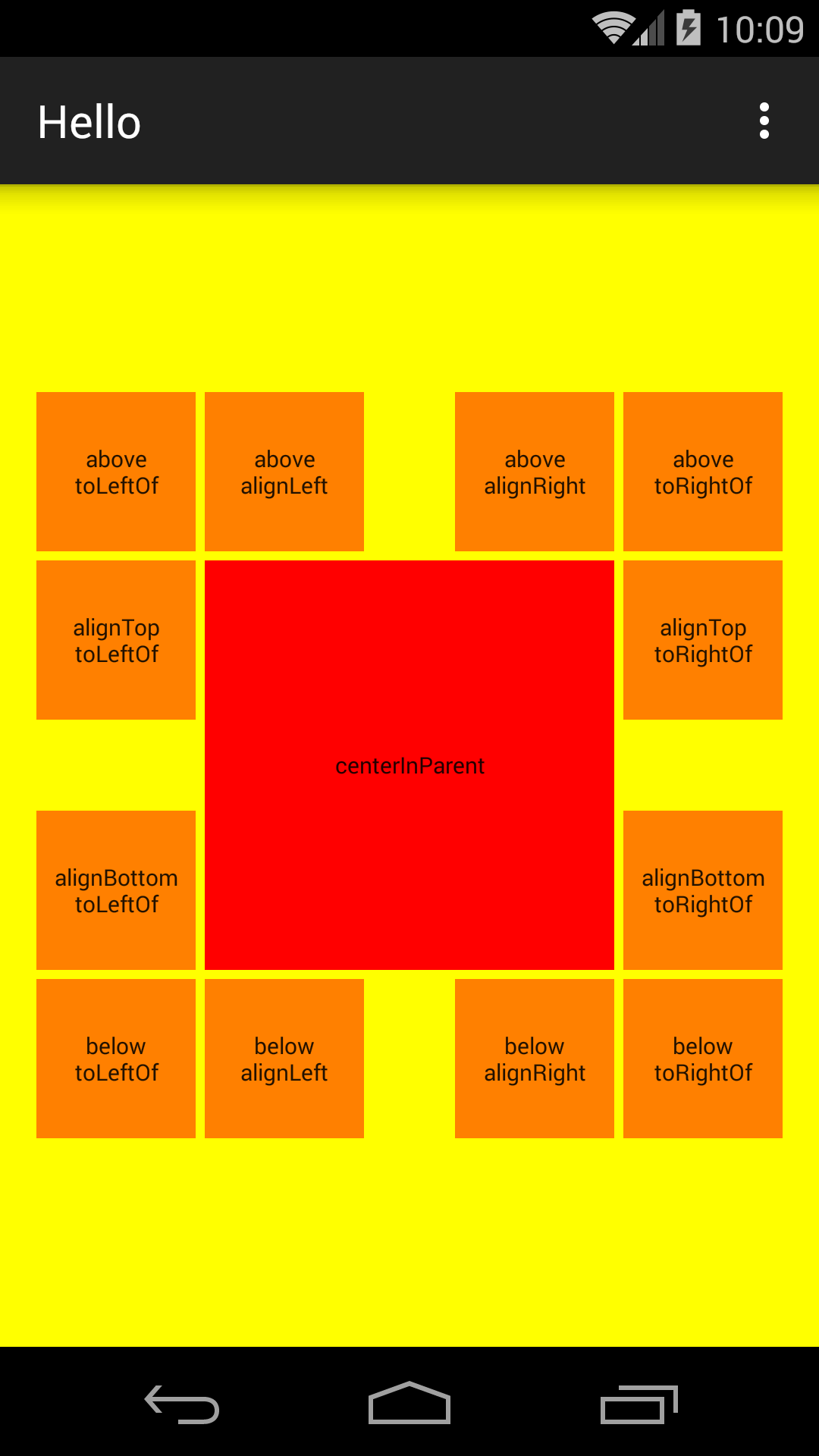
RelativeLayout
can be positioned relative to another child of the
RelativeLayout.
The other child (in this case, the big red one) must have an
id
number
that has a name.
For example, the following
+id
gives the name
center
to the id number of the big red
TextView.
(This will create a Java variable whose full name will be
R.id.center.)
An
id
without the plus does not create a name for an id number.
It merely refers to an existing name.
For example, the second
TextView
("above\nToLeftOf")
is
above
the one whose id number is named
center.
<RelativeLayout
    xmlns:android="http://schemas.android.com/apk/res/android"
    xmlns:tools="http://schemas.android.com/tools"
    android:layout_width="match_parent"
    android:layout_height="match_parent"
    android:paddingLeft="@dimen/activity_horizontal_margin"
    android:paddingRight="@dimen/activity_horizontal_margin"
    android:paddingTop="@dimen/activity_vertical_margin"
    android:paddingBottom="@dimen/activity_vertical_margin"
    android:background="#FFFFFF00"
    tools:context=".MainActivity">

    <TextView
        android:id="@+id/center"
        android:layout_width="180dp"
        android:layout_height="180dp"
        android:layout_marginLeft="4dp"
        android:layout_marginRight="4dp"
        android:layout_marginTop="4dp"
        android:layout_marginBottom="4dp"
        android:layout_centerInParent="true"
        android:background="#FFFF0000"
        android:textSize="10sp"
        android:gravity="center"
        android:text="centerInParent"/>

    <!-- upper left -->

    <TextView
        android:layout_width="70dp"
        android:layout_height="70dp"
        android:layout_above="@id/center"
        android:layout_toLeftOf="@id/center"
        android:padding="4dp"
        android:background="#FFFF8000"
        android:textSize="10sp"
        android:gravity="center"
        android:text="above\ntoLeftOf"/>

    <TextView
        android:layout_width="70dp"
        android:layout_height="70dp"
        android:layout_alignTop="@id/center"
        android:layout_toLeftOf="@id/center"
        android:padding="4dp"
        android:background="#FFFF8000"
        android:textSize="10sp"
        android:gravity="center"
        android:text="alignTop\ntoLeftOf"/>

    <TextView
        android:layout_width="70dp"
        android:layout_height="70dp"
        android:layout_above="@id/center"
        android:layout_alignLeft="@id/center"
        android:padding="4dp"
        android:background="#FFFF8000"
        android:textSize="10sp"
        android:gravity="center"
        android:text="above\nalignLeft"/>

    <!-- upper right -->

    <TextView
        android:layout_width="70dp"
        android:layout_height="70dp"
        android:layout_above="@id/center"
        android:layout_toRightOf="@id/center"
        android:padding="4dp"
        android:background="#FFFF8000"
        android:textSize="10sp"
        android:gravity="center"
        android:text="above\ntoRightOf"/>

    <TextView
        android:layout_width="70dp"
        android:layout_height="70dp"
        android:layout_alignTop="@id/center"
        android:layout_toRightOf="@id/center"
        android:padding="4dp"
        android:background="#FFFF8000"
        android:textSize="10sp"
        android:gravity="center"
        android:text="alignTop\ntoRightOf"/>

    <TextView
        android:layout_width="70dp"
        android:layout_height="70dp"
        android:layout_above="@id/center"
        android:layout_alignRight="@id/center"
        android:padding="4dp"
        android:background="#FFFF8000"
        android:textSize="10sp"
        android:gravity="center"
        android:text="above\nalignRight"/>

    <!-- lower left -->

    <TextView
        android:layout_width="70dp"
        android:layout_height="70dp"
        android:layout_below="@id/center"
        android:layout_toLeftOf="@id/center"
        android:padding="4dp"
        android:background="#FFFF8000"
        android:textSize="10sp"
        android:gravity="center"
        android:text="below\ntoLeftOf"/>

    <TextView
        android:layout_width="70dp"
        android:layout_height="70dp"
        android:layout_alignBottom="@id/center"
        android:layout_toLeftOf="@id/center"
        android:padding="4dp"
        android:background="#FFFF8000"
        android:textSize="10sp"
        android:gravity="center"
        android:text="alignBottom\ntoLeftOf"/>

    <TextView
        android:layout_width="70dp"
        android:layout_height="70dp"
        android:layout_below="@id/center"
        android:layout_alignLeft="@id/center"
        android:padding="4dp"
        android:background="#FFFF8000"
        android:textSize="10sp"
        android:gravity="center"
        android:text="below\nalignLeft"/>

    <!-- lower right -->

    <TextView
        android:layout_width="70dp"
        android:layout_height="70dp"
        android:layout_below="@id/center"
        android:layout_toRightOf="@id/center"
        android:padding="4dp"
        android:background="#FFFF8000"
        android:textSize="10sp"
        android:gravity="center"
        android:text="below\ntoRightOf"/>

    <TextView
        android:layout_width="70dp"
        android:layout_height="70dp"
        android:layout_alignBottom="@id/center"
        android:layout_toRightOf="@id/center"
        android:padding="4dp"
        android:background="#FFFF8000"
        android:textSize="10sp"
        android:gravity="center"
        android:text="alignBottom\ntoRightOf"/>

    <TextView
        android:layout_width="70dp"
        android:layout_height="70dp"
        android:layout_below="@id/center"
        android:layout_alignRight="@id/center"
        android:padding="4dp"
        android:background="#FFFF8000"
        android:textSize="10sp"
        android:gravity="center"
        android:text="below\nalignRight"/>

</RelativeLayout>
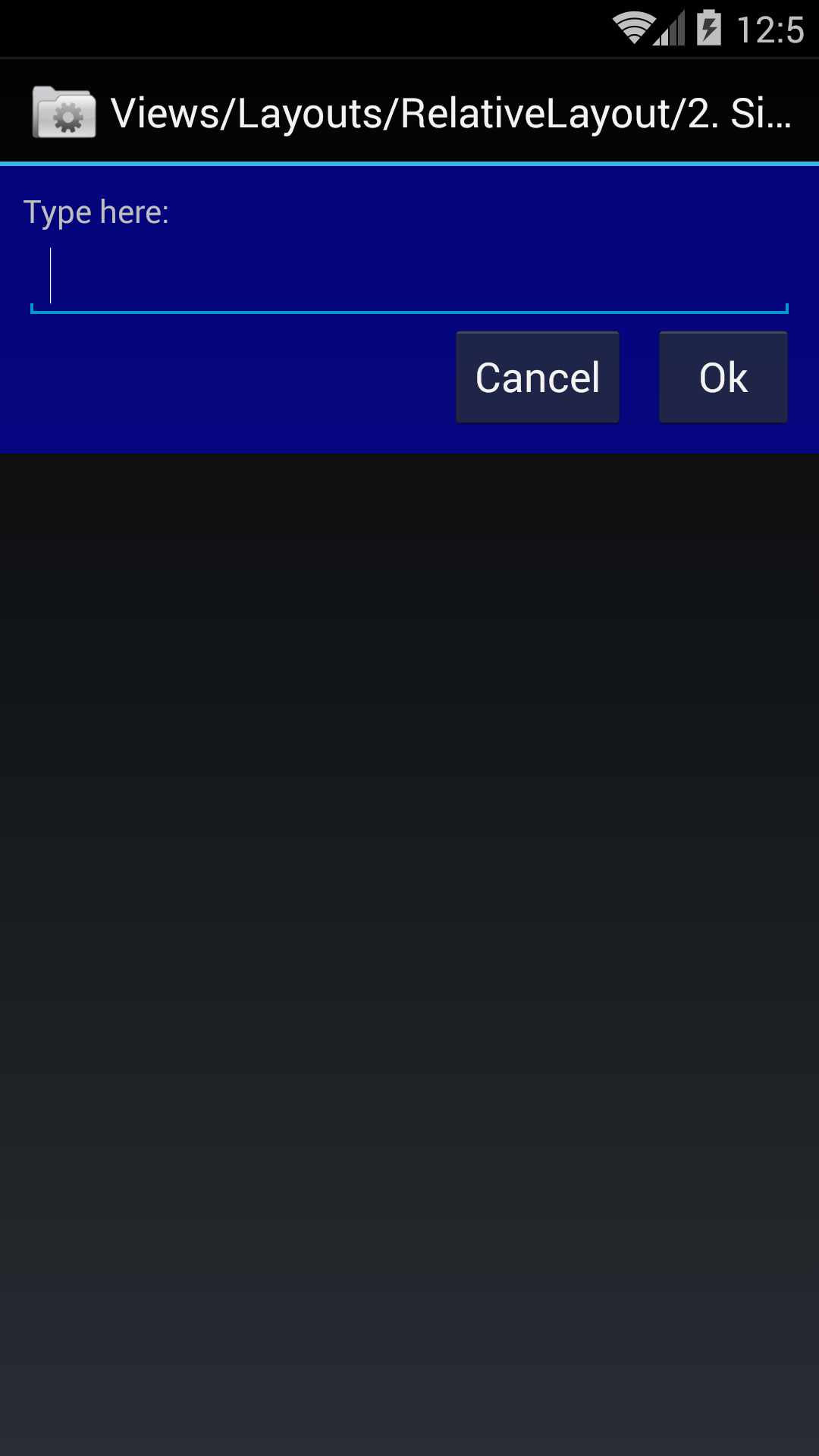
Views → Layouts → RelativeLayout → 2. Simple Form
In LinearLayout, we will see another way to draw the same layout:
Views → Layouts → LinearLayout → 5. Simple Form
-
ApiDemos/src/com/example/android/apis/view/RelativeLayout2.java -
ApiDemos/res/layout/relative_layout_2.xml
ARelativeLayoutcontaining fourViews:-
TextView -
EditTexthas the attributeandroid:layout_below="@id/label". -
The Ok
Buttonhas the attributesandroid:layout_below="@id/entry"andandroid:layout_alignParentRight="true". -
The Cancel
Buttonhas the attributesandroid:layout_toLeftOf="@id/ok"andandroid:layout_alignTop="@id/ok"
-
-
ApiDemos/res/values/strings.xml
contains string resources: -
ApiDemos/res/values/colors.xml
contains drawable resources:-
blue(line 21)
-
android:gravity="center"
puts the text in the center of the state.
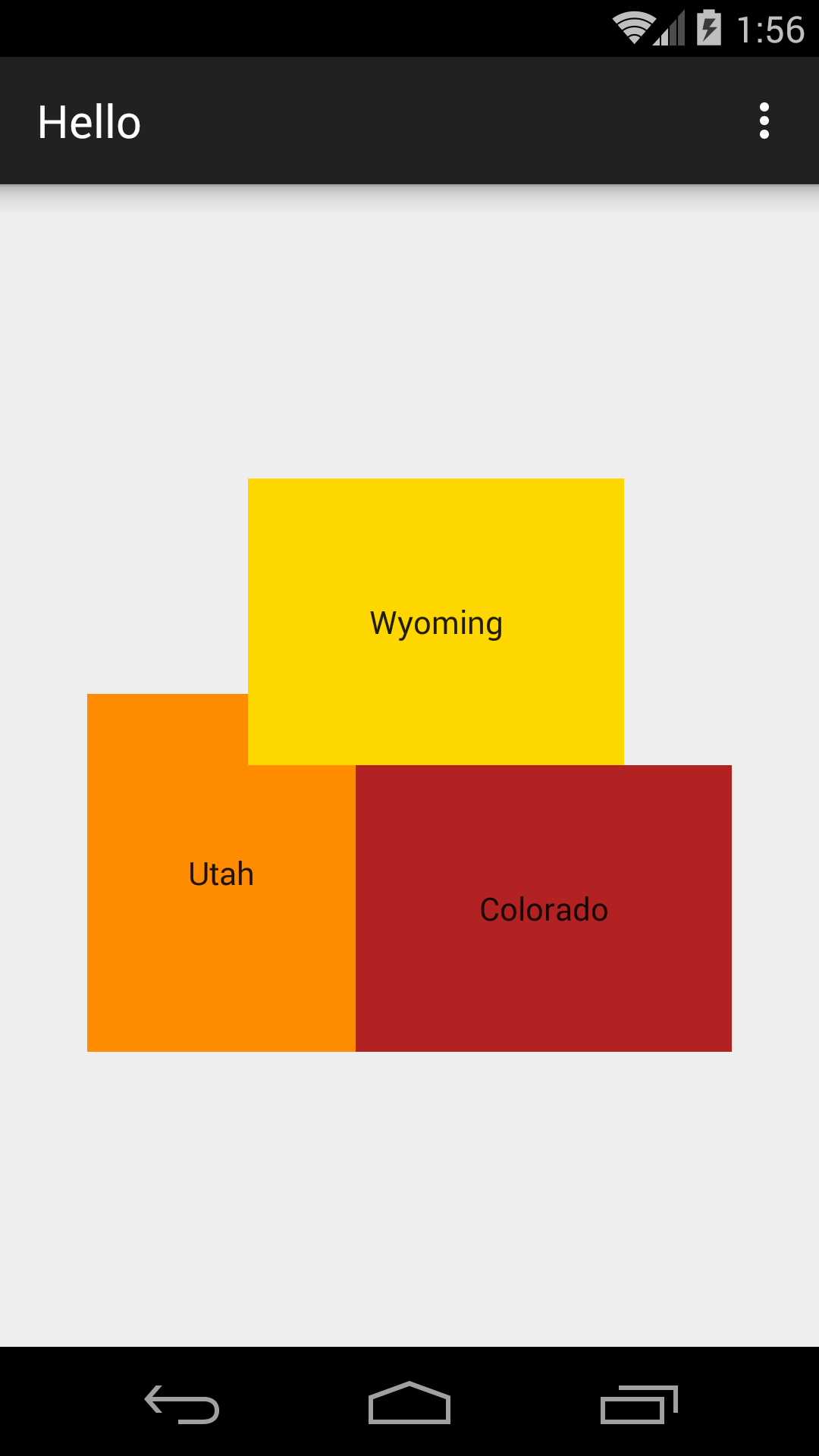
Colorado is in the
lower
right
corner of the inner
RelativeLayout.
This
RelativeLayout
is invisible and is shrink wrapped around the three states.
(I wanted its
layout_width
and
layout_height
to be
wrap_content,
but for some reason that didn’t shrink wrap.)
The inner
RelativeLayout
is
centered
in the outer
RelativeLayout,
which fills the screen and is also invisible.
Vertical scale: 5 millimeters = 1 degree of latitude.
Horizontal scale: 5 millimeters = 1⅓ degrees of longitude.
Projection:
equirectangular
with standard parallel at 41° North.
The cosine of 41° is approximately ¾.
<RelativeLayout
    xmlns:android="http://schemas.android.com/apk/res/android"
    xmlns:tools="http://schemas.android.com/tools"
    android:layout_width="match_parent"
    android:layout_height="match_parent"
    tools:context=".MainActivity">

    <RelativeLayout
        android:layout_width="45mm"
        android:layout_height="40mm"
        android:layout_centerInParent="true">

        <TextView
            android:id="@+id/colorado"
            android:layout_width="26.25mm"
            android:layout_height="20mm"
            android:layout_alignParentBottom="true"
            android:layout_alignParentRight="true"
            android:background="#FFB22222"
            android:gravity="center"
            android:text="Colorado" />

        <TextView
            android:layout_width="18.75mm"
            android:layout_height="25mm"
            android:layout_alignBottom="@id/colorado"
            android:layout_toLeftOf="@id/colorado"
            android:background="#FFFF8C00"
            android:gravity="center"
            android:text="Utah" />

        <TextView
            android:layout_width="26.25mm"
            android:layout_height="20mm"
            android:layout_above="@id/colorado"
            android:layout_alignRight="@id/colorado"
            android:layout_marginRight="7.5mm"
            android:background="#FFFFD700"
            android:gravity="center"
            android:text="Wyoming" />

    </RelativeLayout>

</RelativeLayout>
What would happen to Wyoming if you drew Utah before Wyoming?
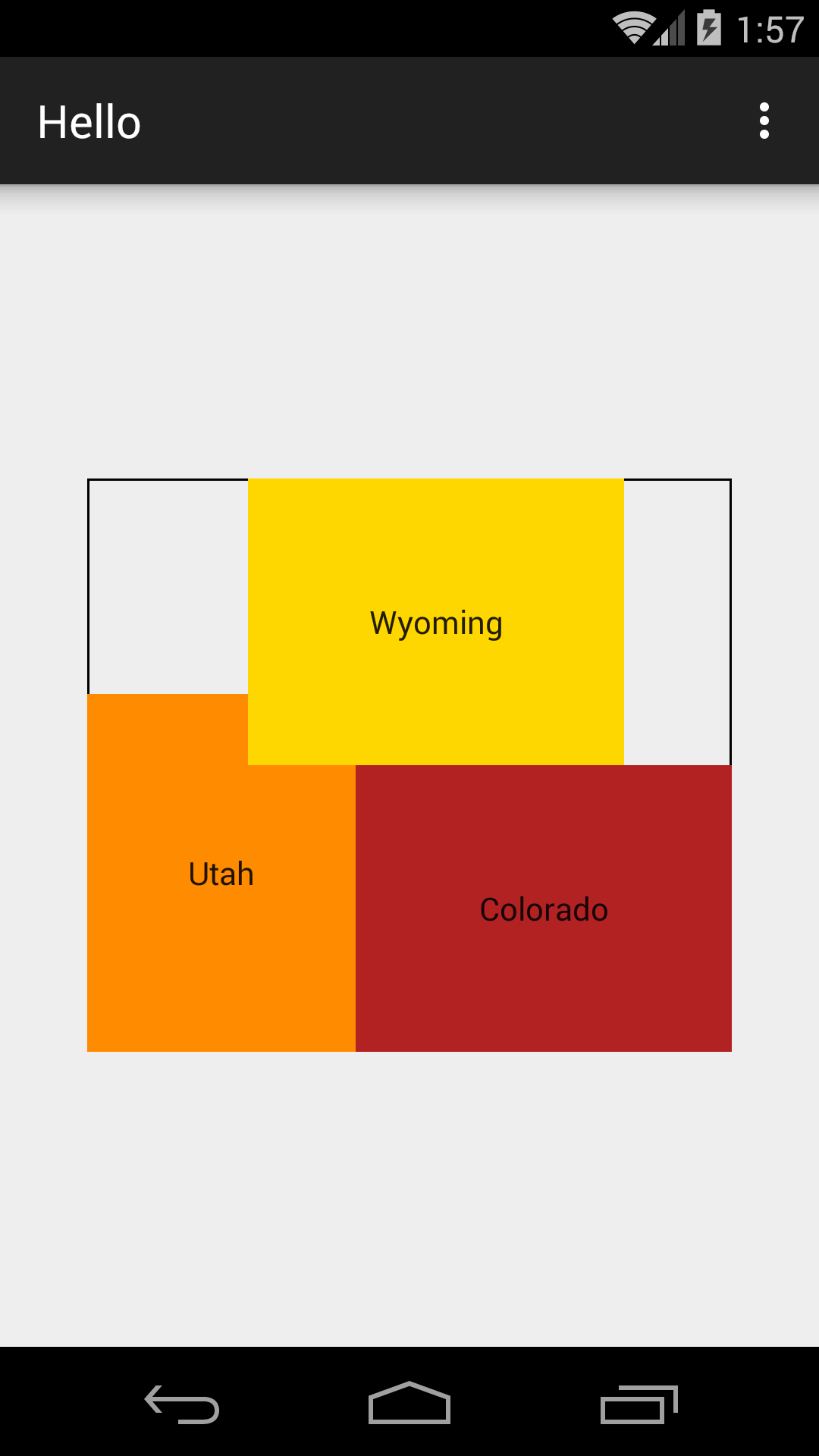
Give the inner
RelativeLayout
a black border
so we can see it.
Follow the directions in exercise 8 of
Hello,
but remove the
<solid>
element
from your file
border.xml.
(To see the whole border,
make the states semitransparent or give the
RelativeLayout
padding.)
TextView.
            android:clickable="true"
            android:onClick="visitColorado"
In the file
app/java/edu.nyu.scps.hello/MainActivity.java,
add one of the following methods to class
MainActivity.
Insert one of them immediately before the second line that says
@Override.
See
Toast
Messages
and
Dialog Boxes.
    public void visitColorado(View v) {
        Toast toast = Toast.makeText(this, "Thank you for touching Colorado.", Toast.LENGTH_LONG);
        toast.show();
    }
    public void visitColorado(View v) {
        //The builder will build the dialog.
        AlertDialog.Builder builder = new AlertDialog.Builder(this);

        //Tell the builder about the dialog we want it to create.
        builder.setTitle("Colorado");
        builder.setMessage("Thank you for visiting Colorado.");
        //null because we want the positive button to do nothing
        //except dismisss the dialog.
        builder.setPositiveButton("OK", null);

        //Now that we've finished describing the dialog,
        //tell the builder to create it.
        AlertDialog alertDialog = builder.create();
        alertDialog.show();
    }
You’ll have to insert the following statement with all the other
import
statements at the top of
app/java/edu.nyu.scps.hello/MainActivity.java.
import android.app.AlertDialog;